NordVPN Extension for Edge: How to Install and Use It
Install the NordVPN extension for Microsoft Edge, connect securely, and understand how it differs from the full VPN app.
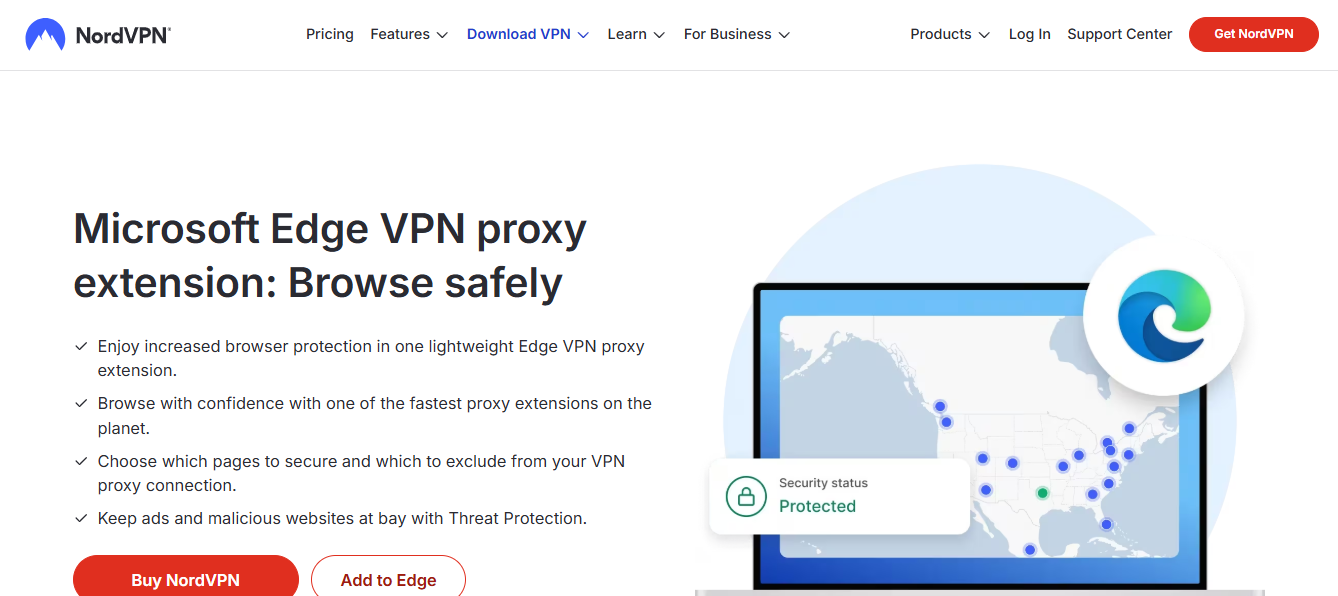
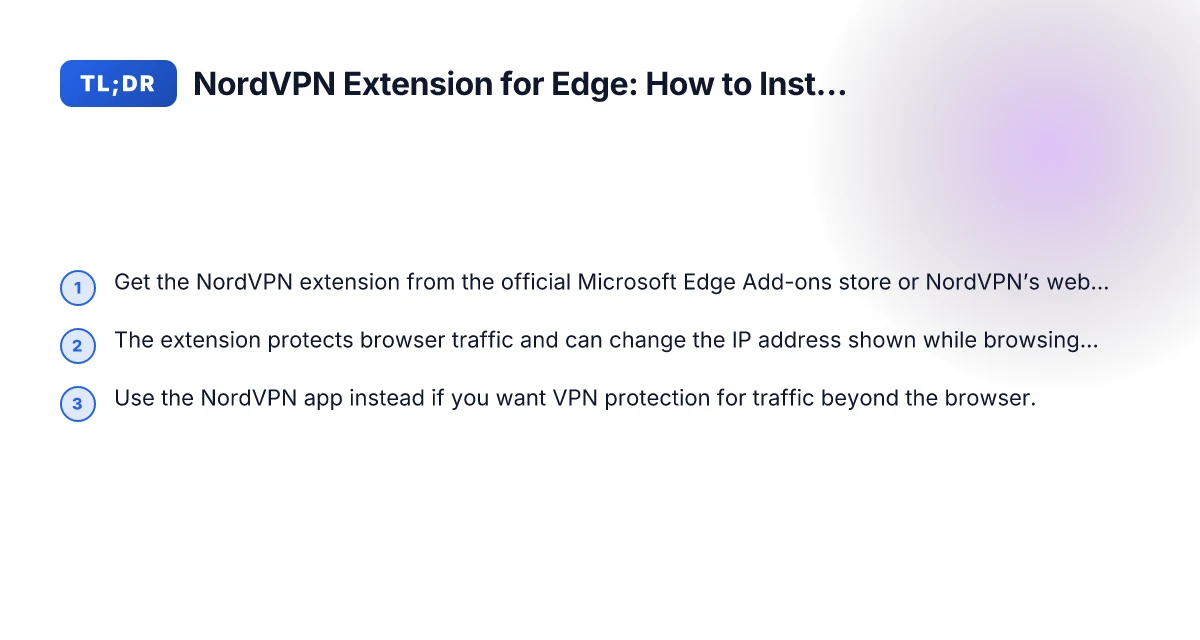
If you’re looking for the NordVPN extension for Edge, you can install it from the Microsoft Edge Add-ons store and use it to secure your browsing traffic and change your IP address while using the browser. After installation, sign in to your NordVPN account and select Secure my connection to connect. The extension works as a browser proxy, so it is designed for activity in Edge rather than as a replacement for the full NordVPN app.
Editor's pick: NordVPN — fast, secure VPN — Strong encryption, a no-logs policy and apps for every device. 30-day money-back guarantee. Get NordVPN →
NordVPN Edge extension vs. NordVPN app
| Comparison point | Edge extension | NordVPN app |
|---|---|---|
| Where it works | Microsoft Edge browser | Device-wide |
| Protects browser traffic | Yes | Yes |
| Protects other apps | No | Yes |
| Setup location | Edge Add-ons store | NordVPN app |
| Connection control | In Edge | In the app |
| Best suited for | Browser-only use | Broader device protection |
Compiled November 2026; check the provider's site for current details.
| VPN | Obfuscation | From / month | Plan | Free plan | Refund | Alipay | UnionPay | Crypto | Website opens in China | Trustpilot | |
|---|---|---|---|---|---|---|---|---|---|---|---|
 NordVPN | Turn on manually Obfuscated Servers / NordWhisper | $3.49/mo | 27 months: $94.23 | No | 30 days | ? | ✗ | ✓ | ✓ | ✗ Blocked | 4.2/5 (51,628 reviews) |
 ZoogVPN | Turn on manually Shadow | $2.49/mo | 27 months: $59.99 | Yes | 7 days | ✓ | ✓ | ✓ | ✓ | Official site blocked; our special link opens (4.4 s) | 4.2/5 (195 reviews) |
 ExpressVPN | ✓ On by default all servers | $3.00/mo | 28 months: $84 | No | 30 days | ✗ | ✗ | ✓ | ✗ | ✗ Blocked | 4.4/5 (29,706 reviews) |
 Surfshark | ✓ On by default Camouflage, with OpenVPN | See site | See site | No | 30 days | ✗ | ✗ | ✗ | ✓ | ✗ Blocked | 4.3/5 (31,823 reviews) |
 Proton VPN | Turn on manually Stealth, free plan too | $2.99/mo | 12 months: $35.88 | Yes | 30 days | ✗ | ✗ | ✗ | ✓ | ✗ Blocked | 2.1/5 (1,040 reviews) |
 Astrill VPN | Turn on manually StealthVPN / OpenWeb | $12.50/mo | 24 months: $300 | No | See site | ✗ | ✗ | ✗ | ✓ | ✗ Blocked | 1.3/5 (110 reviews) |
 Private Internet Access | Turn on manually Shadowsocks, OpenVPN only | $2.03/mo | 40 months: $81.2 | No | 30 days | ✗ | ✗ | ✗ | ✗ | ✗ Blocked | 4.2/5 (11,033 reviews) |
 CyberGhost | Turn on manually selected servers | $2.19/mo | 28 months: $61.32 | No | 45 days | ✗ | ✗ | ✗ | ✓ | ✗ Blocked | 4.0/5 (24,178 reviews) |
 PureVPN | Turn on manually switch to OpenVPN | $1.69/mo | 60 months: $101.55 | No | 31 days | ? | ? | ✗ | ✓ | ✗ Blocked | 4.4/5 (17,994 reviews) |
 AdGuard VPN | ✓ On by default TrustTunnel | $2.99/mo | 24 months: $71.76 | Yes | 30 days | ✓ | ✗ | ✓ | ✓ | Official site blocked; our special link opens (3.7 s) | 4.3/5 (290 reviews) |
 Mullvad | Turn on manually QUIC / Shadowsocks / LWO | $5.61/mo | €5/mo | No | 14 days | ✗ | ✗ | ✗ | ✓ | ✗ Blocked | 3.2/5 (192 reviews) |
 Windscribe | Turn on manually Stealth / WStunnel | $5.75/mo | 12 months: $69 | Yes | See site | ✗ | ✗ | ✗ | ✓ | ✗ Blocked | 4.7/5 (13,355 reviews) |
 StrongVPN | Turn on manually Scramble, OpenVPN TCP | See site | See site | No | 30 days | ✓ | ✗ | ✗ | ✗ | ✗ Blocked | 4.4/5 (2,695 reviews) |
 LightXtreme 闪连 | Not listed | $7.08/mo | 12 months: $84.99 | Yes | 30 days | ✓ | ✓ | ✓ | ✓ | ✓ Yes (3.5 s) | No page |
Prices checked 2026-11-10 on each vendor's pricing page (cheapest long plan, USD). Check the vendor's checkout for the final price.
Obfuscation checked 2026-11-14 on each vendor's site and help center: "on by default" = nothing to set; "turn on manually" = switch protocol or mode in settings; "not listed" = the vendor describes no obfuscation.
Payment methods checked 2026-11-10 on each vendor's payment pages: all 14 take cards and PayPal; ✗ = not listed, ? = the vendor's own pages disagree.
China access: whether the official website opens from mainland China networks (tests the website only, not the VPN connection). Last checked 2026-11-18 01:02 Beijing time.
Trustpilot score and review count checked 2026-11-10.
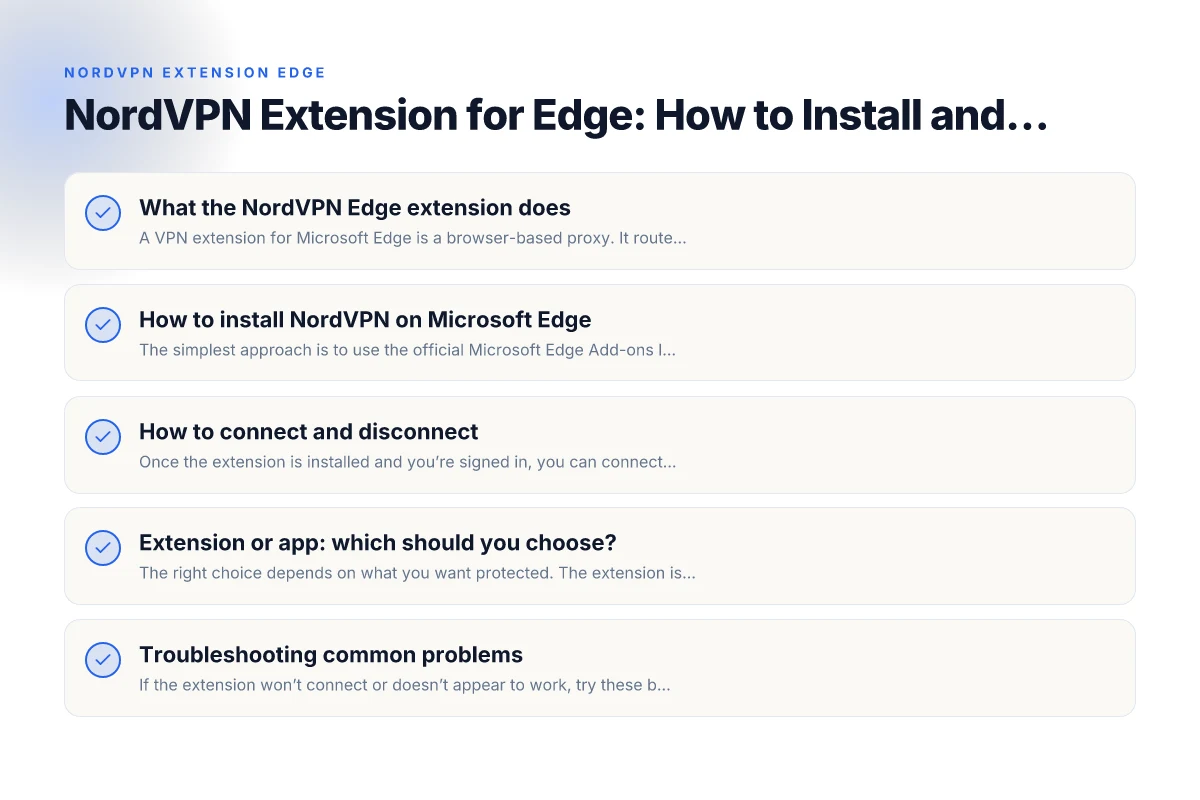
What the NordVPN Edge extension does
A VPN extension for Microsoft Edge is a browser-based proxy. It routes your browser traffic through NordVPN and changes the IP address associated with that browsing activity. This can help protect your connection while you use websites in Edge and make your apparent online location different.
The extension is intended for people who want a browser-focused way to connect. It is described as a lightweight option, but its coverage is narrower than a full VPN application: the extension focuses on browser traffic, while the app can protect traffic from other applications on your device.
| Option | What it is designed to protect |
|---|---|
| NordVPN Edge extension | Browsing traffic in Microsoft Edge |
| NordVPN app | Internet traffic from apps across your device |
If you need protection only while browsing in Edge, the extension may be convenient. If you want VPN coverage for other software too, consider using the NordVPN app.
How to install NordVPN on Microsoft Edge
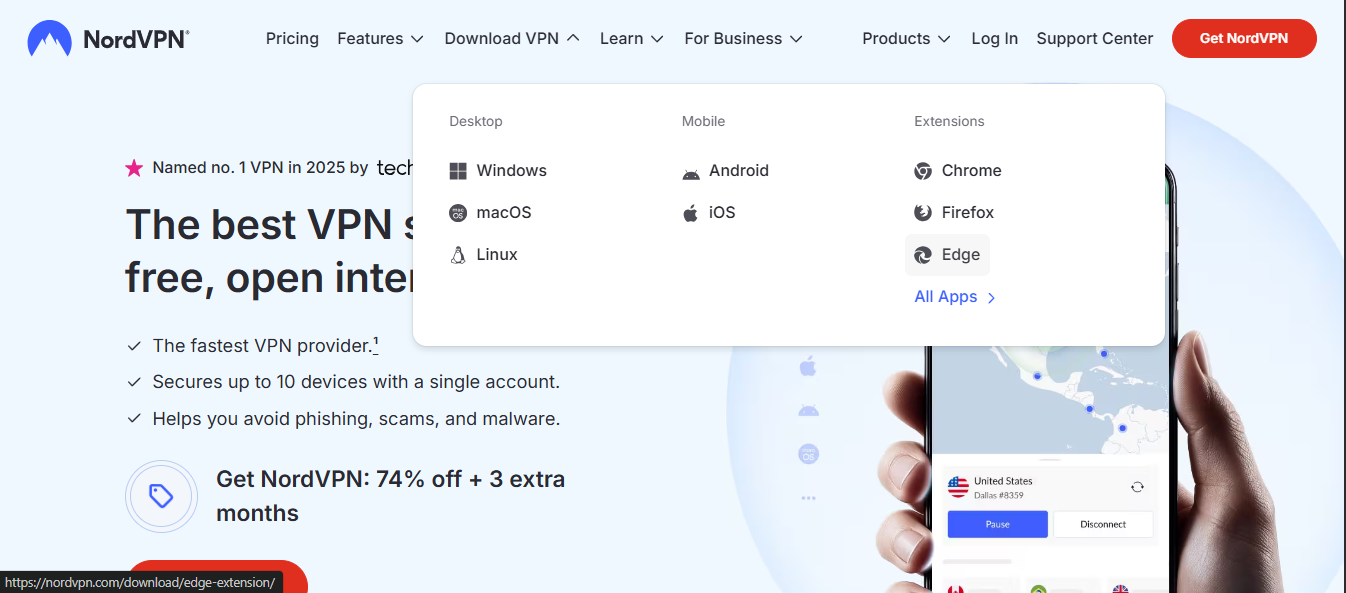
The simplest approach is to use the official Microsoft Edge Add-ons listing. You can also begin at NordVPN’s Edge extension download page, which directs you to the browser extension. VPN Extension for Microsoft Edge: How to Choose and Use One
- Open Microsoft Edge.
- Visit the official NordVPN listing in the Microsoft Edge Add-ons store, or go to NordVPN’s extension download page.
- Select the option to get or install the extension.
- Review the browser’s permission prompt and confirm if you want to proceed.
- Open the NordVPN extension from Edge’s toolbar.
- Sign in to your NordVPN account.
For safety, check that the publisher and listing are official before installing. Avoid downloading browser extensions from unfamiliar sites or following links in unsolicited messages. If an extension listing or publisher looks different from what you expect, pause and verify it through NordVPN’s official website.
How to connect and disconnect
Once the extension is installed and you’re signed in, you can connect from its toolbar menu. NordVPN’s support instructions describe the main connection action as Secure my connection.
To connect
- Select the NordVPN icon in the Edge toolbar. If it isn’t visible, check Edge’s extensions menu and pin it for easier access.
- Sign in if prompted.
- Select Secure my connection.
- Wait for the extension to show that the connection is active.
The extension can then route your Edge browsing traffic through NordVPN. The available controls and labels may vary as the product interface changes, so follow the instructions shown in the current extension.
To disconnect
Open the extension menu and use its disconnect control. If you’re unsure whether it is connected, check the extension’s status before visiting sites where you want the VPN connection active. Free VPN for Edge Extension: How to Choose One Safely
Choose the right NordVPN connection option
| Need | Edge extension | NordVPN app |
|---|---|---|
| Protect only Edge browsing | Suitable | Also suitable |
| Cover traffic outside Edge | Not suitable | Suitable |
| Manage protection in the browser | Suitable | Managed in the app |
| Keep protection limited to one browser | Suitable | Not browser-limited |
| Use NordVPN across the device | Not suitable | Suitable |
| Prefer a browser-based setup | Suitable | Not the browser extension |
Compiled November 2026; check the provider's site for current details.
Extension or app: which should you choose?
The right choice depends on what you want protected. The extension is focused on Edge. The full app is intended for device-wide VPN use. Neither option should be treated as a guarantee of complete anonymity, and a VPN does not replace careful security habits.
Choose the Edge extension if you: Free VPN Edge Extension: How to Choose One for Microsoft Edge
- Mainly want a VPN connection while browsing in Microsoft Edge.
- Prefer to control the connection from the browser toolbar.
- Don’t need VPN routing for other applications on the device.
Choose the NordVPN app if you:
- Want VPN protection for traffic from multiple apps.
- Need a connection that isn’t limited to one browser.
- Prefer to manage VPN settings outside Edge.
You may use the extension and app for different purposes, but check their connection settings and status so you understand which traffic is routed through the VPN.
Troubleshooting common problems
If the extension won’t connect or doesn’t appear to work, try these basic checks:
- Confirm you’re signed in. Open the extension and check whether it requests your account details.
- Check the connection status. Use the extension’s own status indicator rather than assuming it connected after clicking.
- Restart Edge. Close and reopen the browser, then try again.
- Update the extension and browser. An outdated version can cause compatibility or connection problems.
- Review conflicting extensions or network settings. Another privacy tool, proxy, or security setting may interfere.
- Reinstall from an official source. If the extension behaves unexpectedly, remove it and install it again from the official Edge Add-ons listing.
If those steps don’t resolve the issue, consult NordVPN’s current support instructions for the Edge extension. Don’t rely on old forum posts as definitive evidence about the current extension. Verify concerns through official sources and the current store listing. VPN Extension Edge Free: How to Choose a Free VPN for Microsoft Edge
Troubleshoot NordVPN Edge extension problems
| Problem | What to check | Next step |
|---|---|---|
| Extension missing | Edge Add-ons store | Install the NordVPN extension |
| Cannot sign in | Account credentials | Sign in again |
| Cannot connect | Internet connection | Check connectivity and retry |
| Connection drops | Extension connection status | Reconnect |
| Extension not responding | Edge browser | Restart Edge |
| Problem continues | Extension and browser updates | Update, then try again |
Compiled November 2026; check the provider's site for current details.
Recommendation
The NordVPN extension for Edge is a practical choice when you want to route your Microsoft Edge browsing through a VPN proxy and change your browser’s IP address. Install it through the official Edge Add-ons store, sign in, and select Secure my connection. If you want VPN protection beyond Edge, use the NordVPN app rather than relying on the browser extension alone.